
#tutorials • Published On: Aug 24, 2026
VRChat Avatar Upload Guide
This guide is meant to provide information as to how to upload VRChat avatars, specifically tailored to how I manage my projects.
I share this with people who commission my work, to make it a little easier for those who have no knowledge as to how to upload a VRChat avatar. However, anybody can use this to help create a better workflow for their avatars.
It’s against VRChat’s Terms of Service to upload for someone else. Even when only heavily discouraged, I have heard many stories about other creators getting permanently banned for uploading for another user even where no malice is intended. Where possible, I absolutely avoid doing this for another person. So, this guide is here to help you figure it out yourself!
I will update this as I change how I upload or distribute my avatars, or when something needs a little bit more explaining. You should come back to this if you need a refresher or have new files to update your avatar with.
You should also take information from this guide for yourself and learn how to tinker a little bit with your avatar(s). I provide a lot of useful information that can lead to you skipping hours of searching for a solution to one of the many problems Unity has, and I will preload you with a lot of tools that can help you make your life a lot easier in the long run when tinkering with or uploading your avatar.
SYSTEM REQUIREMENTS
If you know you can run Unity already, skip this section. You can also ignore my babbling and view Unity’s system requirements.
Unity’s engine isn’t for potatoes. But if your computer can run VR, then it can run Unity. Maybe not optimally– but it’ll do. What I suggest here is what I personally think is what you need to really run Unity.
You must have a computer. You cannot upload on Mobile. VRChat relies on Unity as a professional game engine for real game development, to deploy user content (avatars, worlds). It is a real game engine used in the industry, and isn’t lightweight on your system. Typically, if you play PCVR, and your PC can run VR at at least a stable 20’ish frames-per-second on average, your PC is going to be fine.
You can check your PC’s specifications by right-clicking on your taskbar and going to Task Manager. The “Performance” tab on the left should bring you to an area that has statistics about your hardware, but it also will show you information about what hardware it is.
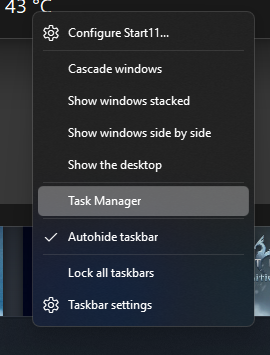
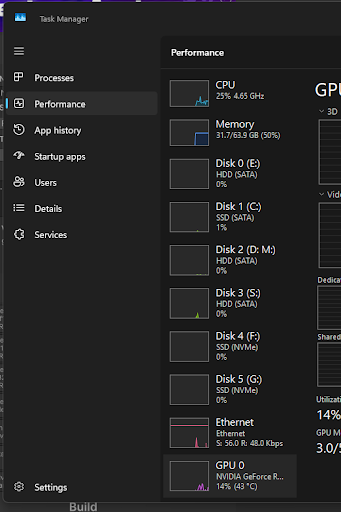
All these tabs will tell you what hardware is in your computer.
Eg, this tells me how much RAM I have:
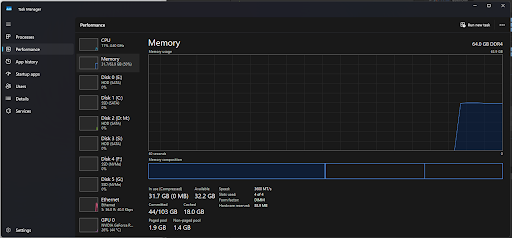
I recommend having at least 16GB of RAM. 8 will do it, but it’s going to struggle and you probably will need a large page file. You can change by following along with this article. Your page file is a backup for when your RAM runs out, by dedicating some storage/hard drive space as extra ram, but it’s a tenth of its speed. You can ignore this, but if you experience errors saying you’ve run out of memory while building your avatar, you’ll need to make your page file bigger. I would suggest a 64-128GB (128000000000 byte) page file size for starters. Unity is a memory hog and will use all of it. If you change this, be sure to restart your PC before it comes into effect.
GPU doesn’t matter too much, but an NVidia GPU does better than AMD when it comes to development work. NVidia cards have exclusive features such as CUDA (which is used by Bakery in worlds and Substance Painter. AMD doesn’t support CUDA. This doesn’t matter for avatars unless you plan on baking light in Substance Painter or VRChat worlds. If you plan on doing other Unity development, you should consider switching to NVidia Studio drivers. NVidia’s Studio drivers are more stable for development and VR applications than the Game Ready driver, and can even outbeat FPS/performance in VR applications. You can check for the NVidia Studio drivers and click on “Professionals/Workstation Users”. ONLY do this if you have an NVidia GPU, don’t do this on AMD.
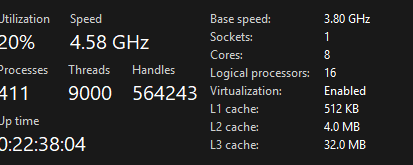
Unity is very CPU intensive on CPU. This also doesn’t matter much, but core count matters more than your speed. I recommend having at least 6 cores.
Here’s a Ryzen 7 5800X for example, which does fairly well with Unity.
You also need around 128GB of free space. 64ish should be fine– but have a lot of room for things like Unity’s cache (which can get massive for a single project). Development using a real game engine is not space conservative when it comes to source. I personally have a 8TB drive JUST for unity projects– but you aren’t the one doing commissions and that’s still a little bit overkill, so for you, space for one or two projects should be good enough!
Ultimately, you can probably just try it and hope for the best. Just don’t run Unity on a Dell Optiplex 755 or your grandma’s 15 year old PC that’s still stuck on Windows 7 and can’t run Windows 10 or 11. You kind of need a gaming PC at minimum.
UNITY & VCC INSTALLATION
In this section, we’re installing the software you need to run Unity and get your avatar uploaded. This can take a lot of time depending on your internet connection– and you only have to do this once, so be patient.
First, install Unity Hub. You should create a Unity account that you’ll remember later, because later on you can buy Unity assets used commonly across projects like Dynamic Bones for legacy assets, FinalIK for advanced bone components that some avatars use, and Bakery if you want pretty lighting in your VRChat worlds. You probably don’t need them, but keep the importance of your account in mind for when you want to do just more than just upload an avatar.
When you open Unity Hub, go to the “Installs” tab. Don’t install the latest editor, because we have to install a very specific version of Unity.
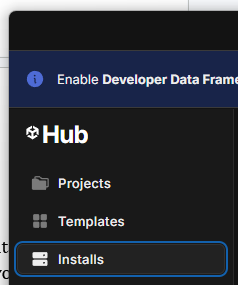
Hit this blue “Install Editor” button.

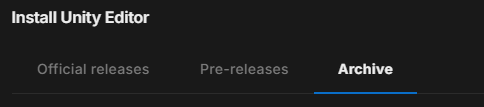
Go to the “Archive” tab for older versions.
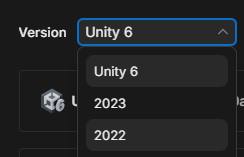
Go to “2022” under “Version”.
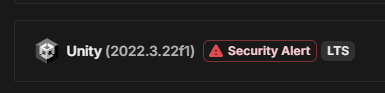
Look for “2022.3.22f1”. Double check this is the latest version as recommended by VRChat. If it’s different, choose that exact version instead.
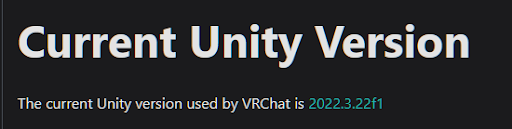
VRChat currently uses this version of Unity. You must install that exact version, any difference in version will result in errors and/or you being unable to upload later. (This will be updated when it changes, which is maybe once every few years.)
There is a known vulnerability with this Unity version, but for the purpose of VRChat, it’s safe, because the vulnerability is fixed on VRChat’s server-side code. Just don’t use this version and use the latest LTS/version of Unity instead if you want to make content outside of VRChat’s purpose later down the road. So, if you see this error/prompt warning you, ignore it, because it’s completely safe. You can read about this vulnerability. Many games using Unity’s engine had to be updated to patch this remote code execution exploit, because it affected essentially every version of Unity, and it shook the internet for a while!
Hit the blue “Install” button. Don’t continue just yet!
If you want to build anything for Android, you MUST select Android build support. If you don’t do this now, it will be harder to install it later. (if you miss it, you can go back and modify your install, but this is some extra steps.) Leave everything that is already checked, checked, but also make sure that Android and iOS build support is checked before you hit “Continue”.
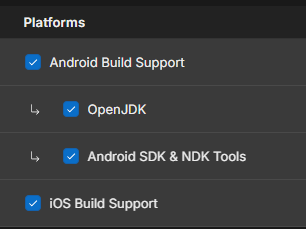
Hit continue once you verify Android and iOS building is enabled.

This can take a while, so give yourself a bit of time.
Visual Studio should install along with Unity. You want to install Visual Studio. Visual Studio allows you to edit code/Udon scripts, and again, if you don’t do this step, you would have to go back to it later. You can install Visual Studio with all the settings as default. The installer will pop up as part of your Unity install at some point during the installation.
Once Unity is installed, you can close Unity Hub entirely. In fact, forget it ever existed.
Now that Unity is installed, we can work on getting VCC.
VCC is “VRChat Creator Companion.” It’s a launcher for your VRChat specific Unity projects, the same as “Unity Hub”, however, it also does other things like make sure packages are up to date, and downloads the SDK (Software Development Kit, this is what makes uploading possible. It’s VRChat’s code/assets required for uploading to VRChat).
Packages are quite literally .zip files in Unity format (Fun fact, they’re openable as an archive, but you won’t be able to read anything in it.) Usually these are “*.unity“ files. But there’s community packages you can fetch automatic updates from, coming from places like GitHub. We’ll get to those later, but that’s just to explain why we are using VCC instead of Unity Hub, and why VCC exists. VCC keeps your project updated.
Now, here’s the catch– we aren’t actually going to be using the official VCC. The official VCC is closed source and made by VRChat, but comes with some downsides, such as having to update/install/uninstall every single package that is part of your project individually, and an inability to import multiple repositories at once, and so many other things that make managing a project still pretty time consuming.
There’s a community made version of VCC called ALCOM. This is community run and does everything VCC does, but it fixes a lot of the blaring issues that makes the official VCC tedious. We’re going to make use of some of the features that only ALCOM has in a moment.
It’s better to just start with ALCOM instead of VCC. You don’t need VCC at all. ALCOM will just kickstart you into an even more manageable setup in the long run.
Ignore VCC, and grab ALCOM. Just hit that green button.
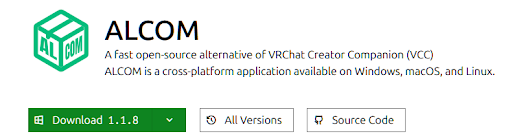
It’ll be a .zip file. Unzip it and open the installer .exe inside of it. Go through the installer, you can keep everything default.
When you finish installing it, open up ALCOM. It’ll ask you a few things, but you can just move through them and leave everything as default. It should be similar to this, but I have a bunch of projects already.
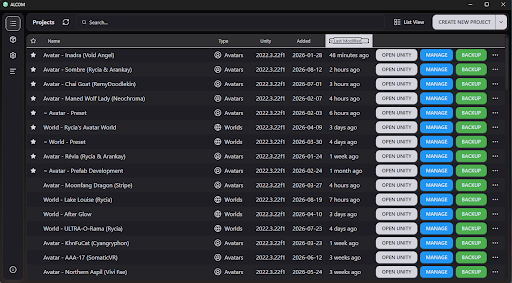
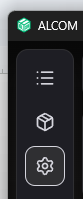
There’s a few settings worth changing. Go to the settings.
Make sure Unity 2022.3.22f1 is here. If not, make sure it’s there.
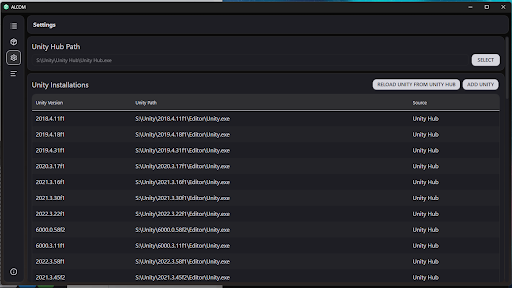
You can scroll down on that settings page.

Set the “Default Project Path” to where you want your projects stored. I heavily recommend a SSD or a high capacity hard drive. Do not use a USB or an external drive, as this will make your project impossibly slow to upload.
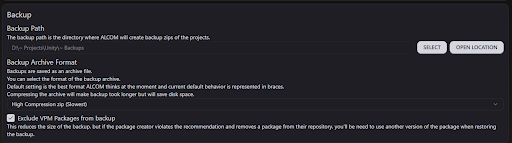
You can set up a backup location separately. I chose the same path as my projects with a “~ Backups” folder. The “~” forces the subfolder to be at the very top/bottom when sorting alphabetically (Just a little file organization trick!).
As projects get extremely large, I recommend setting the archive format for backups to be the absolute highest compression possible, and exclude VPM packages.
I would also turn on “Compact GUI Elements”, but this is user preference.

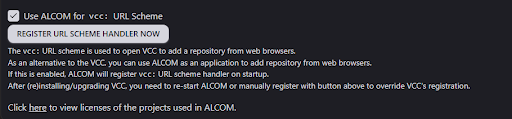
Also make absolutely sure that “Use ALCOM For vcc: URL Scheme” is on. What this does is when you go to a GitHub Repo, that repo often has a “Add to VCC” button, where when you click it, it should automatically open ALCOM to add that repository to your package list, so you could add those files to your projects and get automatic updates from that repository.
Now that settings for ALCOM are set up, let’s move into adding some repositories to ALCOM.
ALCOM has the special ability of being able to import/export a .txt file containing a list of URL’s to add as repositories. This allows me to directly share my entire list of repositories instead of giving you a list to painstakingly add each one individually… like what you would have had to do with VCC.
Download this repositories.txt file, throw it anywhere!

If you are using this guide to update your avatar, and have errors later not being able to find a repository, you should redownload and reimport the file, because I’ll update the link.
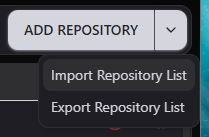
Now, go to ALCOM. And under the resources/packages section, find this dropdown on the top right under Repositories. Hit “Import Repository List” and use my provided repositories.txt. If you see some sort of error saying some repositories already exist or can’t be imported, continue anyways and let the rest import.
You should now have a huge list of repositories, like this. Only ALCOM can do this!
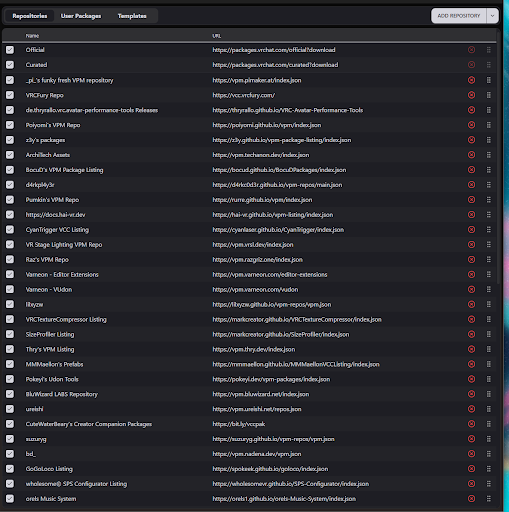
You also now have a lot of the most popular repositories used by the VRChat community at your disposal.
Now, there’s one last thing about getting the repositories.
For my specific projects, or for commissioned avatars, you need to add one repository manually from local files.
My avatars have a toolkit of assets that I like to use across my projects, that saves me a lot of time and has a lot of tooling and scripts. As of August 2026, I have switched my workload of my toolkit to use VCC/ALCOM instead of the Assets folder– where, if I have a hundred different projects, every time I do an update, I would have to use to copy files between projects every time I make an update. Any updates after this date will require this to be installed as a VCC package.
You should make a folder for all your Unity packages somewhere, and local VCC packages. I like to make a “Packages” folder where I put all the *.Unity files in, and a “Packages/VCC” folder to put all my local VCC packages into *.Unity packages and VCC packages aren’t the same thing, so have careful attention.
I have a Google Drive folder of a local VCC package, called “Rycia’s Avatar Kit”. I’ll distribute this folder on request as a seperate google drive folder than commissions. Commissions I distribute will have a folder of all of your avatars, their versions and source files, and I also provide a second folder that’s a “global” folder used across all my commissions for a specific dependency we will be installing to VCC, used across all commission projects.
You will need both your commission avatar’s folder, and the globally shared folder, they are two different Google Drive links. We’ll start with the global stuff first, and get to what you need from your specific commission’s folder later.
First, you’ll be provided the global folder. There will be a folder called “Rycia’s Avatar Kit” which contains an important dependency.

You’ll see versions of the Avatar Kit, labeled by date. The first one might not necessarily be the “latest”, so watch the numbers. It’s in year.month.day format. Grab the absolute latest one available. If you’re updating your avatar, be sure you delete the old one and put the new version in the same exact spot so VCC/ALCOM sees it, as ALCOM will see the local package only in the original location it was in, otherwise you’ll have to add it all over again later.
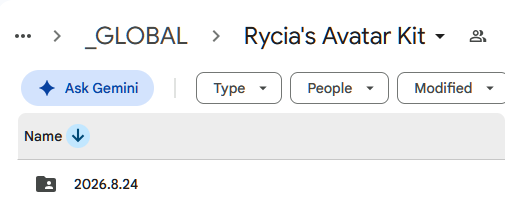
There should be a .zip folder in there. Download it.
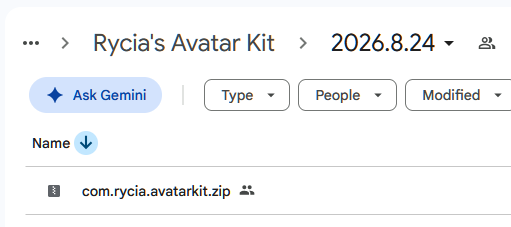
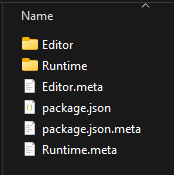
Now, you can unzip the folder and put it into your Packages/VCC folder.
Files should be in “Packages/VCC/com.rycia.avatarkit”. Make sure it’s not “Packages/VCC/com.rycia.avatarkit/com.rycia.avatarkit”. It should be “Packages/VCC/com.rycia.avatarkit/Editor” and “Packages/VCC/com.rycia.avatarkit/Runtime” when you look at the files.
Now, in ALCOM, go to this “User Packages” section.
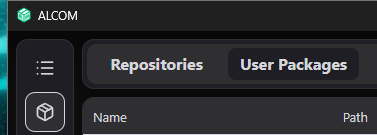
“Add Package”.
And add the “Packages/VCC/com.rycia.avatarkit” folder.
This adds that entire folder as a custom local user-made VCC package!
If you ever want to update this, simply close ALCOM, delete the com.rycia.avatarkit folder, and replace it with the new one from the same Google Drive folder. You need to delete it before you put the updated one in case I moved files– otherwise you can get errors with duplicate scripts. Then you can open ALCOM again and it’ll fetch the new version, you can go to “Manage” on your project, and update to the new version number.
At this point, you are ready to make the Unity project.
Go to ALCOM, and in the main section,
Hit “Create New Project”.
A dialog will show up. But typically, I have one project per entire avatar base and I name them a certain way. Eg.
- Avatar - BaseNameHere (BaseCreatorHere)
- Avatar - Novabeat (KittoMatic)
- Avatar - Vulper (Reval)
- Avatar - Spiri’vali (Hiyu)
My thought process behind this is the following:
- A unity project in VCC can either be a world or an avatar.
- There’s plenty of bases named just “Dragon” and “Canine”… so it’s good to mark who made that base.
- I make one project per base, because one project per person is too much work, and one project for every base means my PC will probably die in .3 seconds if I try to load it.
- I can make my own version of that base and prefab everybody else’s custom avatar off of it, saving a lot of work and allowing updates across multiple people at a time who have a commission off of the same base. There’s no sense in updating 5 Novabeasts individually when I can update one and have the changes mirror all of them.
You are free to manage your projects however you want, but that’s the system I use to manage mine.
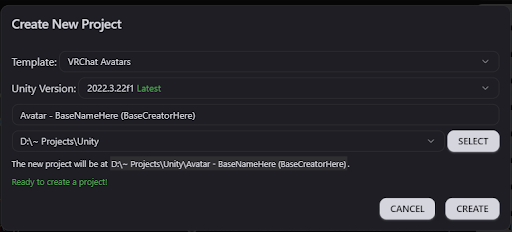
You can then hit “Create”.
Once the project shows up in your list, go to “Manage”.
You can type “Rycia” in the package list to find “Rycia’s Avatar Kit”.

Click “Install”.
“Apply”. If you never installed this before, it’ll say it’ll also want to install a bunch of other packages with it. This skips the entire process of going through a list of what I want you to install, because this installs the majority of what you would need anyways. Otherwise, you would be installing probably 30 different individual packages.

Once it’s installed, you should see a similar message. (I just reinstalled, but it should say “installed”.)

You can now open your project in Unity! This will take a VERY long time the first time it loads, because it’s compiling a lot of scripts and other assets, and generating a cache (which, by the way, if you want to save disk space on unused Unity projects, just delete the Library folder from the project. It’s safe to delete, but you’ll have this first-time-load “experience” again the next time you load the project. You can save 5-10GB of space, if not more.) Sometimes this can take over an hour on a low end computer.

AVATAR SETUP & UPLOAD
Now, it’s time to work with your avatars files! I will have given you a separate Google Drive folder split by avatar and versions, for all current and future avatar work you might receive from me. The folder is named by your name and (typically) your Discord User ID. Eg. “Rycia (1234567890)”
You want to grab the latest unity package file from your avatar folder, usually in “User (1234567890)/BaseName (BaseMakerName)/V1/YourName’s BaseName (BaseMakerName) V1.unitypackage” alongside other files, like texture source files.
Download the unity package.
Sometimes it’ll download as (BaseMakerName) V1.unitypackage.gz. You want to remove the .gz extension off of it, because sometimes Google Drive adds this, thinking it’s a .zip file *(when underlying, a .unitypackage file actually is a .zip file). You want to make sure the extension is “.unitypackage” and not “.unitypackage.gz”. If you don’t see the file extension, make sure Windows shows file extensions by enabling “File name extensions”, and then renaming the file.

You can then open File Explorer with your .unitypackage side-by-side with Unity, and drag-and-drop the .unitypackage file over Unity’s window.
You should get an import package dialog box. Import everything, and leave everything checked. These are the files for your avatar, unpacking into Unity.
